
It’s quite a claim to say that you can bring a large chunk of the world to its knees in one fell swoop, yet Slack seems to possess this power.
But with great power comes great responsibility, and Slack has ‘slacked off’ in some areas you might not have noticed.
As a Slack user, you may have already faced some of Slack’s problems – but there are even more to consider.
Since your team relies on Slack for seamless operations, we’ll provide you with a heads-up about potential issues and share their solutions.
Let’s begin.
Slack problems with latency: Is Slack slacking off?

Slack is one of the most popular business collaboration tools, yet it isn’t immune to criticism from its users.
It primarily faces criticism for its frequent crashes that lock users like you out of the app.
Most of these crashes last just long enough to cause a frenzy in the professional world.
But, more often than not, these issues are resolved before some users even notice.
Despite these speedy fixes, you wouldn’t like getting locked out of your business. You’ll find yourself seeking quick fixes for what to do when Slack is down.
There can be many reasons behind Slack’s downtime. It could be the developers’ faults, poor programming, or a buggy update to the app or the Android or Apple operating systems.
Your issues may be minor and not worth reporting to Slack.
But when hundreds of users report the same issue to Slack, it grabs the company’s attention, expediting the resolution process.
Slack updates its users via social media accounts when the app faces issues and what to do when it is down.
For example, when users came out en masse to complain about the Slack crash on February 2, 2022, Slack took to its Twitter account to release a statement.
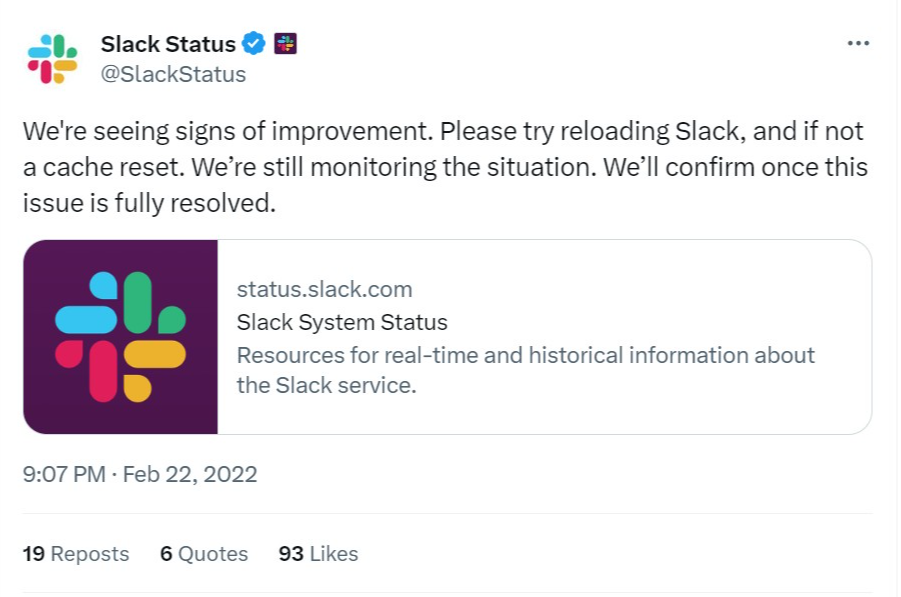
Slack announced, “Some customers may be experiencing issues connecting to Slack or sending messages. We apologise for the trouble. We’re working to resolve this as fast as possible.”
Many websites are available to tell you when Slack is down globally.
The down detector and official Slack status websites are reliable sources. Just visit the website to find out if there are any slack problems today.
The most common Slack problems people encounter
Below, we unravel the most common Slack problems you might face in everyday usage.
1. Connectivity issues
You may encounter problems establishing and maintaining a stable connection to Slack.
As a result, you’ll face difficulty accessing Slack, frequent disconnections, or delays in receiving real-time updates.
We know it’s frustrating when you contact customer support with a technical problem, and they say, “Did you try turning it on and off?”
We hate to be those people, but perhaps your Slack problems are caused by your poor internet connection.

How to fix your connection issues
The first thing you must do when Slack is not working is check your internet connection.
Your WiFi can fluctuate if you’re on the move, leaving you with a poor internet connection.
You can also check the official website for Slack system status for any ongoing issues with the platform.
For all you know, the problem might not be from your end but from Slack itself.
If there is a general problem with Slack, the company will release an official statement on its platforms.
2. Constant notifications
We understand the excitement of a new job or position.
It gets overwhelming to grasp company policies and get acquainted with your new colleagues.
And, of course, if your new company uses Slack, your onboarding process will include adding you to multiple groups, channels, and chat rooms.
Multiple chat rooms and groups mean numerous messages – most of which do not concern you.
So, how can you limit the noise of these annoying notifications that distract you from productivity?
How to fix constant notifications
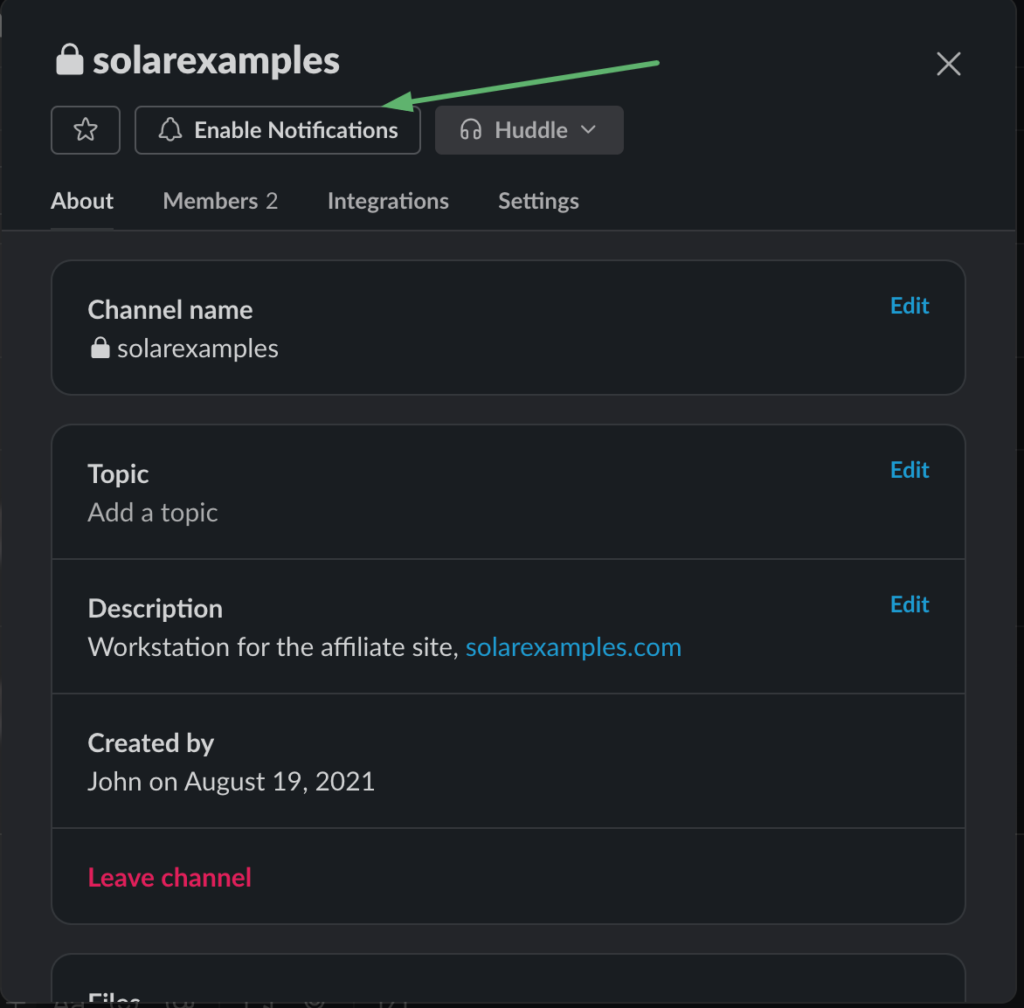
If you don’t enjoy the distractions of continuous pop-up messages and notification sounds, you can turn off notifications for some of the unimportant Slack groups.
And, if you feel gutsy, you can exit those groups with messages you haven’t opened or read since you were added.
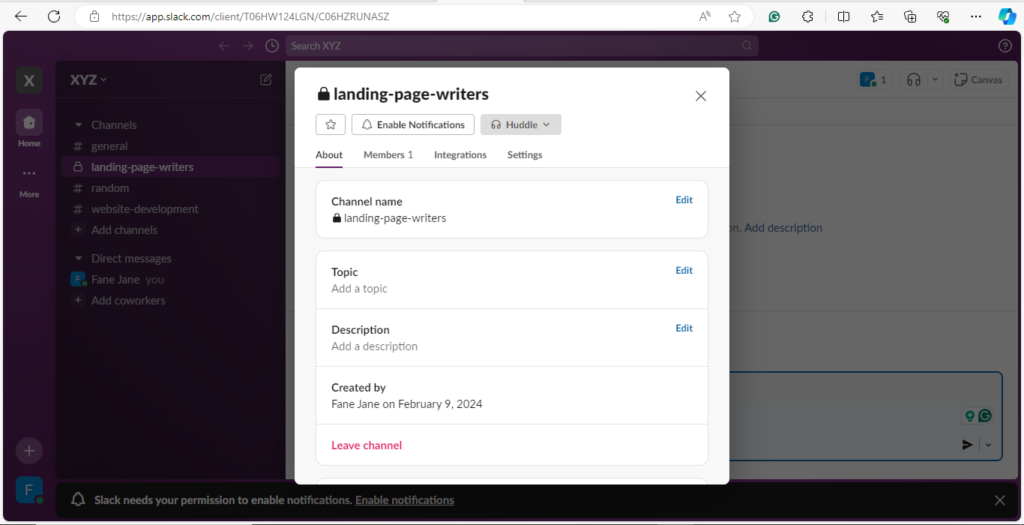
To leave a channel, click on the channel name and select the “Leave channel option.”
If you change your mind, you can easily rejoin the channel later.
Another option is to enable the “Do Not Disturb” feature on the app.
To do this, click on your profile picture at the top of your screen and then select “Pause Notifications.”
Select how long you want your notifications to be silenced from the popup menu that appears.
Another option is to mute notifications from a particular channel.
You can mute notifications from a channel by right-clicking on the channel name and then selecting the “Mute/Unmute” option.
3. Retrieving messages or information within channels
Slack organises your conversations into handy little spaces called “Channels”.
You can join a channel by typing the name in the search bar at the top of the main screen.
Then click on the channel name from your search results and select “Join Channel.”
You and your team can send messages, share files, and communicate effectively on these channels.
Within these Slack Channels, you’ll find message threads for conversations.
Slack channels allow you to send a group message to up to 9 people, send a direct message to a single person, and create a private or public channel.
However, we recommend publicising your channel so your team members can easily find the necessary information.
But is finding information really that easy on Slack?
You may encounter difficulties using Slack’s search feature to find specific messages or information within channels.
The filtering options within channels are limited, making it challenging for you to narrow down and retrieve specific messages or information.
How to fix this issue

Slack allows users to search for messages through the search bar.
However, this function limits its search results to the last 10,000 messages.
So, if you receive thousands of messages a day, you might not be able to find an important message from a week ago.
The solution to this problem is simple: Pay Slack more.
Upgrade your Slack account to the premium version to remove the message search limit.
Once you remove the search limitation, you can find your old messages by clicking the search bar at the top and filtering your results (files, channels, people, and messages).
4. Slack lagging when typing
Using Slack is all about real-time communication. But when Slack lags, it messes up the whole point of using it.
It’s frustrating when you’re trying to get something done quickly, but the app isn’t keeping up.

Some users have complained about this issue with Slack, saying they get up to a 0.5-second lag when typing.
So, why is Slack not responding, and how can you improve Slack’s performance?
How to fix this issue
If you’re using the desktop version of Slack, the problem might be from your device or your internet connection.
Since Slack generally requires a speedy internet connection, you might experience choppy typing with unstable or slow internet.
If your internet is okay and Slack is still lagging, turn off spell check and restart Slack at least a few times daily.
But if this doesn’t work, try closing Slack after using it instead of leaving it running in the background for hours.
If all else fails, close and re-open the app and see if the lagging stops.
If all of these don’t work, the problem might be from your system software, and an upgrade or cache wipe might be the solution.
A simple cache or history wipe might fix your issue with the web version of Slack.
5. Audio issues while on a call
Slack users also complain about audio issues during calls, including audio quality, delays, or other related problems.
You might face this issue while on a Slack call – the video’s working fine, but you can’t hear anything from the other attendees, or vice versa.
When you face delays or lags in audio transmission, it can lead to a disjointed conversation.
Here’s how you can fix the issue.
How to fix this issue
This article from Slack’s help centre graciously offers some tips on troubleshooting Slack calls.
According to Slack experts, if you use the Slack desktop app or Slack in Chrome, you should first run a calls test in the app.
To run a call test, navigate to your profile icon, select “Preferences,” and click “Audio and Video.”
Next, select “Troubleshooting” and “Run an audio”, “Video”, and “Screen sharing test” from there.
Check your bandwidth requirements and network connection if this doesn’t solve your Slack audio problems.
Next, check your audio settings from your computer settings.
Ensure you’ve selected the right microphone and speaker so Slack can access them.
You’ve done everything, and you’re still talking to yourself on your Slack calls?
It might be time to update your Slack desktop app to the latest version or switch from WiFi to mobile data.
If Slack’s performance still doesn’t improve, just restart the app.
If none of these solutions resolve your Slack issues, then it’s time to consider switching to a better alternative.
Check out Slack alternatives
It doesn’t pay to put all your eggs in one basket.
Before you find out the hard way during Slack outages or problems, it’s worth considering switching to an alternative tool.
The following collaboration tools are just as good (or even better) as Slack.
1. Talk Magnet

Talk Magnet is a lightweight, powerful team collaboration tool designed to meet remote workers’ needs.
This scalable collaboration tool offers seamless file management and instant messaging.
Your team can enjoy effective communication and increased productivity by using Talk Magnet.
And here’s the best part.
Unlike other collaboration tools that provide limited search functions, Talk Magnet offers a filtering system that allows you to dig up any message with just one word or date.
The best things come in small bundles, which is true for Talk Magnet.
Talk Magnet’s compact size means you don’t have to worry about app crashes or lagging.
Features of Talk Magnet
Here are some of Talk Magnet’s features:
- User-friendly Interface
- Group and one-on-one chat
- Unlimited message history
- Wide range of integrations
- Scalability
- Seamless file management
- Cloud and local storage
- Data encryption
- Video and audio conferencing
- Communication analytics
2. Microsoft Teams

Microsoft Teams immediately established itself as a solid rival to Slack since its launch in 2017.
Teams have since then secured their place as Microsoft’s work collaboration platform and a workable alternative to email communication and Slack.
On Teams, you and your colleagues can create “Teams” to accommodate different sizes/sectors of your business.
Microsoft takes security and data encryption very seriously. You can also enjoy the benefits of integrating other Microsoft apps.
Microsoft Teams is available on Windows, Android, iOS, and the web.
You can use Teams for free and get access to its limited storage and features, including 100 participants per meeting.
For the premium plan, you must pay $5 per user monthly.
Features of Teams
Here are Microsoft Teams’ features:
- Private messages
- Screen sharing
- Video and audio conferencing
- Desktop, mobile and web apps
- Message search feature
- Data encryption
3. Chanty

Chanty is a team chat tool created for small-scale or medium-scale businesses.
Most teams flock to Chanty due to its more straightforward interface and limitless search capabilities.
Like Slack, Chanty allows you to collaborate one-on-one or on public channels. Chanty takes organisation one step further, though, with the Teambook feature.
Chanty is a decent alternative to Slack if you want to enjoy all the benefits of Slack without tech savviness.
It’s available on Windows, Android, Mac, iPad, and iPhone.
Chanty is free for the first 10 members. But you’ll need to pay $3 per user monthly for unlimited members and additional features.
Features of Chanty
Check out Chanty’s features below:
- Private messages
- Video and audio conferencing
- Screen sharing
- Search option
- Unlimited messages
- Encrypted transactions
Google Chat

Google Chat is an ideal alternative to Slack.
The platform is built with Gmail and gives you access to both Google Chat and Google Meet for video and audio calls.
Whether it’s a one-on-one chat or team communication, Google Chat makes it easy to interact with your team, share files, and discuss topics using Google Slides, Sheets, and Docs.
Google Chat allows you to manage your business remotely, from anywhere in the world, via these apps.
Google Chat is available on Mobile, Desktop, Android, and Apple devices.
It is free for Gmail users.
Features for Google Chat
Below are Google Chat’s features:
- Simplified interface
- Calendar sync
- Mobile and desktop apps
- Free version for Gmail users
- App integration
- Organised chats
Flock

Flock is a cloud-based tool that makes your team communication smoother.
One of Flock’s most significant selling points is its adaptability.
Flock suits almost all kinds of businesses, regardless of size or speciality.
The app is easy to use, offers excellent value for money, and allows you to create communities where you can easily and quickly access information.
Flock is available on the web, Android, iPhone, and iPad.
You get a 30-day free trial and use Flock by paying a $6 monthly fee per user.
Features for Flock
Here are some of Flock’s features:
- Real-time chat
- API
- Calendar tools
- Access control
- Video and audio conferencing
- Screen sharing
- File sharing
- To-do lists
- Email alerts
- App integration
Talk Magnet provides the solution to your collaboration problems
Being proactive about Slack’s potential challenges can ensure a smoother collaboration journey.
However, if you feel you’ve reached your limit, it’s time to make a change.
Consider taking the leap and switching to Talk Magnet, one of the best Slack alternatives.
Talk Magnet is a feature-rich yet simple online communication tool that makes your team productive from day one.
Say goodbye to lags and downtimes and gear up to build a highly engaging team in one place with Talk Magnet.
Book a demo or create a free account to get started now.


